
Blog
How to Add an AJAX Side Cart to PrestaShop 8 and 9 (Without Editing the Theme)
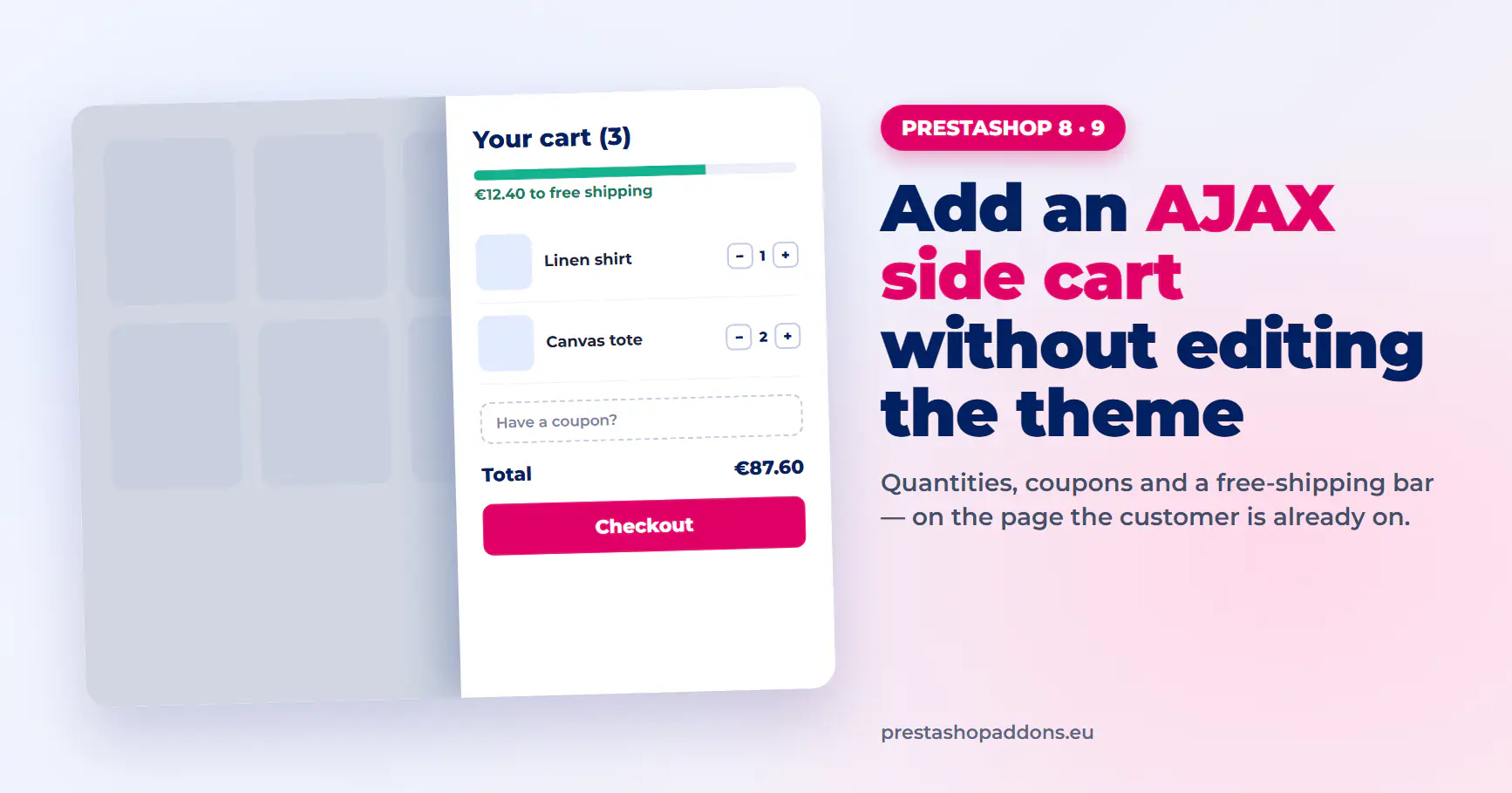
When a customer adds a product in a default PrestaShop 1.7, 8 or 9 store, the theme shows a confirmation popup. To change a quantity, remove an item or enter a coupon, the customer has to open a separate cart page, then find the way back to the products.
A side cart keeps all of that on the page the customer is already on. This guide shows what PrestaShop does out of the box, the two ways to add an AJAX side cart, and a step-by-step setup that does not touch your theme files.
What PrestaShop does out of the box
The cart in PrestaShop comes from the Shopping cart module that ships with the store. On the Classic theme it works like this:
- The customer clicks “Add to cart” and a modal confirms the product was added.
- The modal offers two buttons: continue shopping or proceed to checkout.
- Any change to the cart (quantity, removing a product, a voucher) happens on the cart page, which is a full page load.
- On a phone, the modal covers most of the screen and the cart page is a separate step before checkout.
That flow works, but every change to the cart sends the customer away from the product listing. Around 70% of online carts are abandoned according to the Baymard Institute, and the steps between “add to cart” and “pay” are one of the places where people drop off.
What an AJAX side cart changes
An AJAX side cart is a panel that slides in from the side of the screen when a product is added. The page underneath stays where it was.
- Quantities change with plus and minus buttons, without reloading the page.
- Products are removed from the panel, and totals update immediately.
- Coupon codes are entered in the same panel.
- A free-shipping progress bar shows how much is left to reach the threshold.
- The checkout button is always one tap away.
Read more: AJAX cart vs page reload in PrestaShop, and what it means for conversion →
Two ways to add a side cart
Option 1: build it into your theme
A developer can replace the cart modal with a custom panel. This means editing the theme templates, listening to PrestaShop’s cart events in JavaScript, calling the cart controller with AJAX and styling the result for desktop and mobile.
It gives full control, but the work lives inside the theme. A theme update can overwrite it, and every new feature (coupons in the panel, a shipping bar, product suggestions) is another piece of custom code to maintain.
Option 2: install a module
A side cart module adds the panel through PrestaShop hooks. The theme files stay untouched, the panel survives theme updates, and the options are switched on in the module settings instead of being coded.
The rest of this guide uses Sliding Cart Block, our AJAX side cart module for PrestaShop 1.7.8, 8 and 9. The steps for other modules are similar: upload, configure, check the hooks, test.
Step by step: adding a side cart without editing the theme
1. Check the requirements
- PrestaShop 1.7.8 or newer, including PrestaShop 8 and 9.
- PHP 7.2 or newer (PrestaShop 9 itself needs PHP 8.1 or newer).
- A Back Office account with permission to manage modules.
If you are planning an upgrade to PrestaShop 9 at the same time, scan your other modules first.
Free PrestaShop 9 compatibility checker for modules →
2. Upload the module
- In the Back Office, go to Modules → Module Manager.
- Click “Upload a module” in the top-right corner.
- Drop the module ZIP file into the upload area.
- When the installation finishes, click “Configure”.
3. Choose how the cart opens
The first settings decide what happens after “Add to cart”:
- Open the cart panel automatically after a product is added, or keep it closed and only update the cart icon.
- A separate setting for phones, with a screen-width breakpoint (480 px by default). Many stores keep the panel closed on small screens and open it on desktop.
- Panel on the left or right side, light or dark mode, and a full-width layout on phones.
- An optional sidebar that stays open on wide screens (1300 px and wider by default).
4. Turn on what the cart should show
- Quantity buttons, product images and selected attributes (size, colour).
- Coupon field and total savings.
- Free-shipping progress bar. It reads the free-shipping threshold from your carrier settings, so there is no amount to retype.
- Up to three reward tiers on the progress bar, for example a discount, a gift and free shipping.
- Product suggestions inside the panel and in the add-to-cart popup.
- A minimum order message that disables the checkout button below the minimum amount.
5. Check the hooks
The panel is attached through hooks, so no template has to be edited. If the cart does not appear after installation, go to Design → Positions and make sure the module is attached to displayHeader and displayNav.
If another cart module is active, it can show a second cart or a second popup. Disable the other module before testing.
6. Clear the cache and test
Clear the PrestaShop cache in Advanced Parameters → Performance, then test as a customer:
- Add a product from a category page and from a product page.
- Change a quantity and remove a product in the panel.
- Apply a coupon code.
- Check the free-shipping bar below and above the threshold.
- Repeat on a phone, then place a test order.
Every setting explained in the Sliding Cart Block documentation →
What to measure after the change
Compare four weeks before and after the change, on desktop and mobile separately:
- Add-to-cart to checkout rate.
- Cart abandonment rate.
- Average order value, if you enabled the free-shipping bar or product suggestions.
How to measure cart abandonment in PrestaShop →
Mobile cart UX patterns for PrestaShop →
Frequently asked questions
Do I need to edit my theme to add a side cart?
No. A module adds the panel through PrestaShop hooks, so the theme files stay as they are. Some themes need a few lines of CSS to match colours or spacing.
Does a side cart replace the cart page?
No. The cart page and the checkout keep working as before. The side cart is an extra layer that handles the most common actions without leaving the page.
Does it work on PrestaShop 9?
Sliding Cart Block works on PrestaShop 1.7.8, 8 and 9. If you are upgrading the whole store, check your other modules for code that PrestaShop 9 removed.
Will it slow down the store?
The panel uses its own AJAX controller and loads only the data the cart needs. The product page itself does not reload when the cart changes.
Can customers use coupon codes in the side cart?
Yes. A collapsible coupon field can be enabled in the panel, and the totals update as soon as the code is applied.