
Blog
How to Add a Load More Button or Infinite Scroll to PrestaShop Category Pages
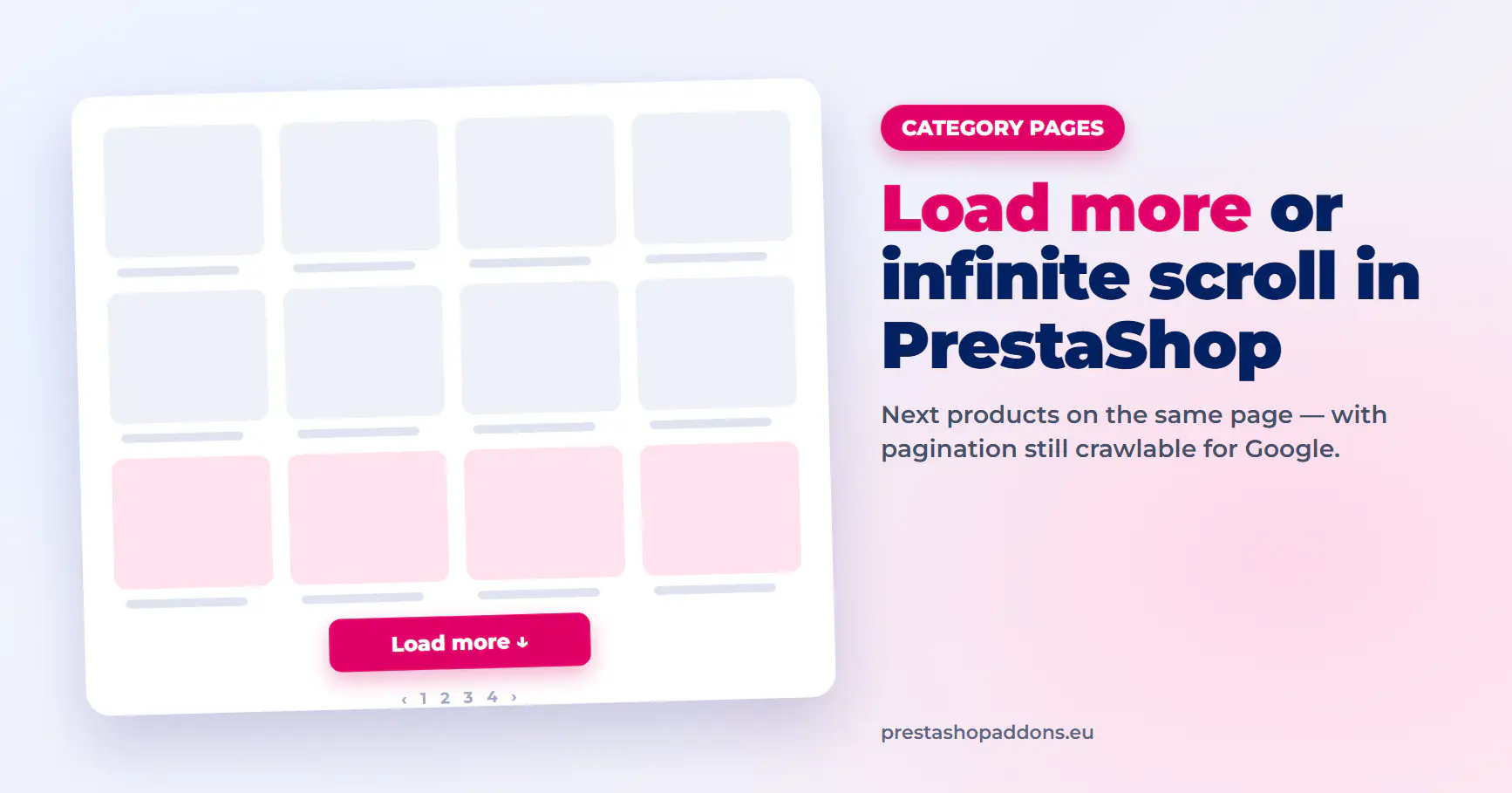
A PrestaShop category page shows a fixed number of products and a row of page numbers at the bottom. To see more, the customer clicks “2”, waits for a full page load and starts again from the top of the list.
A “Load more” button or infinite scroll adds the next products to the same page instead. This guide covers how to choose between the two, how to keep the paginated pages visible to Google, and how to set it up on PrestaShop 1.7 and 8 without editing the theme.
Load more button or automatic infinite scroll?
Both load the next products with AJAX. The difference is who decides when it happens.
- Load more: the customer clicks a button under the product grid. The footer stays reachable, and the customer stays in control of how much is loaded.
- Infinite scroll: the next products load automatically as the customer gets close to the end of the list. Browsing is faster on phones, but the footer is harder to reach.
A practical default for most stores is the “Load more” button, with automatic loading tested on categories where customers browse many products in a row, such as fashion or decoration.
Load more button vs auto-load infinite scroll: the full comparison →
Keep the paginated pages crawlable
Search engines do not scroll and do not click buttons. If products from page 2, 3 and 4 only appear after a JavaScript action, a crawler may never see them.
Google’s guidance on pagination and incremental page loading comes down to a few rules:
- Every page of the category keeps its own URL, such as ?page=2.
- Each page links to the next one with a normal link that a crawler can follow.
- Loading more products on the page does not remove those links from the HTML.
The safe setup keeps PrestaShop’s native pagination in the page and hides it visually only when JavaScript is running. Visitors see the “Load more” button, and crawlers still find the links to every page.
Pagination vs infinite scroll in PrestaShop: the SEO side →
Step by step: adding Load more or infinite scroll to category pages
The steps below use Infinite Scroll, our module for PrestaShop 1.7 and 8. It works through hooks, so the theme files stay untouched.
1. Upload the module
- In the Back Office, go to Modules → Module Manager.
- Click “Upload a module”.
- Drop the module ZIP file into the upload area.
- When the installation finishes, click “Configure”.
2. Choose the loading mode
- Infinite loading type: “Load more button” (the default) or “On scroll”.
- Loader style: a text message or one of six animations.
- Texts: the button label, the “Loading…” message and the message shown when there are no more products.
- Colours of the button, the loader and the text.
3. Decide where it runs
The module works on category pages and also on search, brand, supplier, new products, best sellers and prices drop pages. An optional block on the home page loads products from a category you choose, a few at a time.
4. Check the selectors on custom themes
The module needs to know where the products and the pagination are in your theme. The defaults match the Classic theme:
- Product container: #products .products.row
- Pagination: .pagination
- Next page link: .page-list .next
- Single product: .products.row article
On a custom theme, open a category page, right-click a product, choose “Inspect” and copy the class names your theme uses into the module settings. No code changes are needed.
5. Test with filters
Faceted search is where product loading most often breaks. Test these cases on a category page:
- Load more products, then apply a filter (brand, price or an attribute).
- Apply a filter first, then load more products.
- Change the sort order and load more again.
- Open page 2 directly through its URL and check that it still shows the right products.
The module reads the active filters and sort order, so the next products match what the customer selected.
6. Check the result on a phone
- Load a few batches and check that images appear without the page jumping.
- Use the scroll-to-top button to get back to the filters.
- Open a product, go back, and check that the category page still works.
Every Infinite Scroll setting explained in the documentation →
Speed and images
Products loaded later should not slow down the first view of the page. Images added by the module use native lazy loading, asynchronous decoding and low fetch priority. Themes that use their own lazy loading with data-src attributes are supported as well.
PrestaShop category page optimization: the complete guide →
Frequently asked questions
Does infinite scroll hurt SEO in PrestaShop?
Not when every page of the category keeps its URL and the pagination links stay in the HTML. Problems start when products from later pages can only be reached by scrolling or clicking.
Does it work with faceted search?
Yes. The next products follow the active filters and sort order, including brand, price and attributes.
Which PrestaShop versions are supported?
Infinite Scroll works on PrestaShop 1.7 and 8.
Can I use a Load more button instead of automatic loading?
Yes. The button is the default mode. Automatic loading on scroll is one switch in the settings.
Do I need to edit my theme?
No. The Classic theme works with the default settings. Custom themes may need their CSS selectors entered in the module settings.