
Blog
PrestaShop 1.7 to 9 Upgrade Checklist: 12 Steps Before You Click “Update”
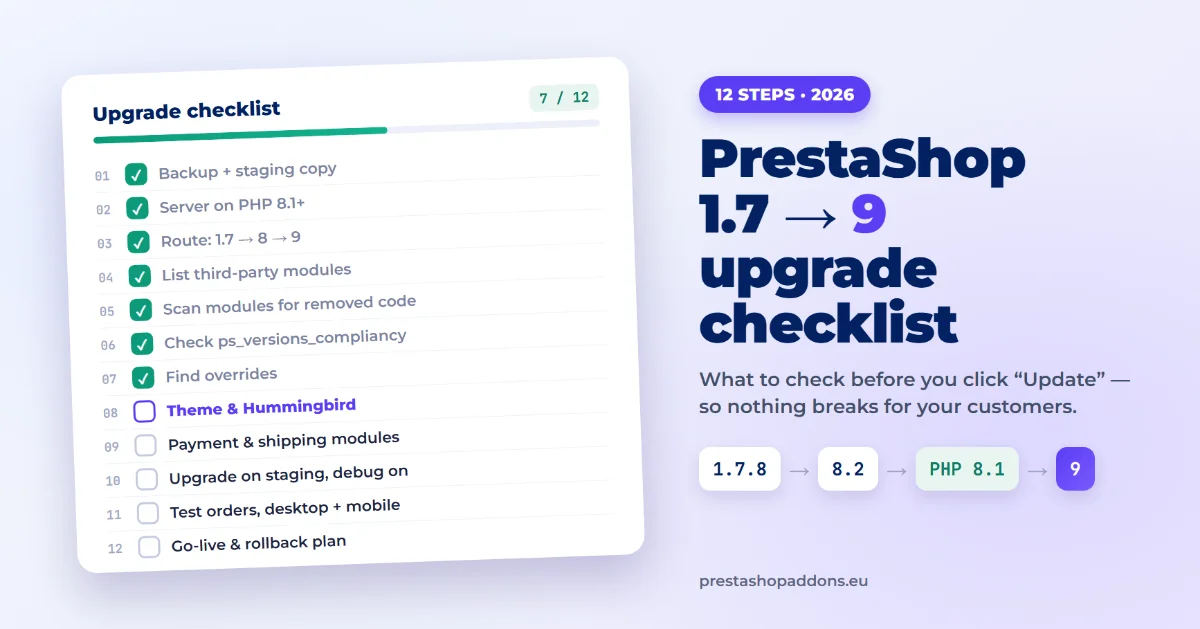
Upgrading a store from PrestaShop 1.7 to 9 is not one click. Between those versions PrestaShop changed its minimum PHP version, removed hundreds of core classes, replaced the default theme and changed how the back office is built. The upgrade itself usually goes fine. What breaks is everything around it: a payment module that calls a method that no longer exists, an override that silently stops working, or a theme template that expects variables PrestaShop 9 no longer sends.
This checklist is the order we work in when we prepare a store for PrestaShop 9. Most of it happens before you start the upgrade, on a copy of the store, so that nothing breaks for your customers.
Before you start: write down three things
Open the back office and go to Advanced Parameters → Information. Note:
- Your PrestaShop version, for example 1.7.8.11 or 8.1.7.
- Your PHP version, shown on the same page under server information.
- How many modules are not from PrestaShop. In Modules → Module Manager, look at what you installed yourself or bought. These are the modules that decide how hard the upgrade will be.
A store on 1.7.8 with PHP 7.4 and twenty third-party modules is a project. A store on 8.2 with PHP 8.1 and five well-maintained modules is an afternoon.
The 12-step checklist
1. Make a full backup and a staging copy
Back up both the files and the database, and make sure you can actually restore them. Then create a staging copy of the store on the same kind of server, ideally on a subdomain protected with a password. Every step below happens on that copy first. The live store is only touched at the very end.
2. Check the server: PHP 8.1 or newer
PrestaShop 9 requires PHP 8.1 or newer (9.0 supports PHP 8.1 to 8.4, 9.1 adds 8.5; see the official system requirements). That is the most common blocker for 1.7 stores, because PrestaShop 1.7 does not run on PHP 8 at all. Check with your host which PHP versions they offer, and whether you can switch the version per site. Also check memory_limit (the official documentation suggests at least 512M), max_execution_time, and that the intl, zip, gd and mbstring extensions are enabled.
3. Plan the route: 1.7 → 8 → 9
A direct upgrade from 1.7 to 9 is not supported: the official Update Assistant takes 1.7 stores to PrestaShop 8 first. The PHP requirement shapes the rest of the route. PrestaShop 1.7.8 runs on PHP up to 7.4, PrestaShop 8 runs on PHP 7.2.5 up to 8.1, and PrestaShop 9 starts at PHP 8.1. So for a 1.7 store the usual safe path is:
- Upgrade 1.7.8 to 8.2 while still on PHP 7.4.
- Switch the server to PHP 8.1, which both PrestaShop 8 and 9 support, and test.
- Upgrade 8.2 to 9.
Each step changes only one thing at a time, so when something breaks you know what caused it. A store already on PrestaShop 8 can go straight to 9.
4. List every third-party module and check its vendor
For each module that did not come with PrestaShop, write down the version and check whether the author has released a PrestaShop 9 version. Modules bought on PrestaShop Addons show the supported versions on their product page. If a module has not been updated for years, plan for one of three outcomes: replace it, have it fixed, or remove it. Unused modules are the easiest win: uninstall them before the upgrade and they cannot break anything.
5. Scan your modules for code PrestaShop removed
Between 1.7.8 and 9.0 PrestaShop removed 444 core classes, about 1,800 methods, 23 constants and 16 hooks. A module that uses any of them will either throw a fatal error or quietly stop doing part of its job.
You don’t have to find these by hand. We published a free, open-source script that scans a module and lists every removed class, method and hook it uses, with the file and line, and suggests the replacement for the most common ones. It is described in a free PrestaShop 9 compatibility checker for modules. To check all modules of a store at once:
for m in /var/www/shop/modules/*/; do php ps9check.php "$m"; doneA typical finding looks like this:
ERROR    yourmodule.php:176
         Tools::displayPrice() was removed in PrestaShop 9.0.
         → Use $this->context->getCurrentLocale()->formatPrice($price, $this->context->currency->iso_code).
A short report usually means one-line fixes. A long one means the module needs real work, and it is better to know that now than after the upgrade.
6. Check each module’s declared compatibility range
Every module declares which PrestaShop versions it supports in ps_versions_compliancy. If the maximum is below 9.0, for example 'max' => '8.99.99', PrestaShop 9 refuses to install it. The scanner reports this too. Only raise the value after the module has actually been tested on PrestaShop 9, otherwise you are just hiding the problem.
7. Find your overrides
Overrides are files in the /override folder that replace parts of the PrestaShop core. They were common in the 1.6 and 1.7 days. When PrestaShop removes or renames the method an override replaces, the override is simply never called, with no error message. The feature it added just disappears.
List everything in /override/classes and /override/controllers, find out which module or developer added each file, and check whether the overridden method still exists in PrestaShop 9. A quick test: in Advanced Parameters → Performance you can disable all overrides on the staging copy and see what changes.
8. Plan for the theme
PrestaShop 9 ships with a new default theme, Hummingbird. Upgrading does not switch your theme automatically, so a store on Classic or on a bought theme keeps it. That is good news, but it has two consequences:
- A bought theme needs its own PrestaShop 9 version from the theme author, exactly like a module.
- Modules that work with Classic can behave differently on Hummingbird, and the other way round. Hummingbird uses CSS cascade layers and its own cart modal, which broke several parts of our own cart module until we fixed them. The details are in our PrestaShop 9 module upgrade case study.
If you plan to move to Hummingbird later, test the important modules on it now, while you are testing anyway.
9. Start with payment and shipping modules
Not every broken module costs the same. A broken blog module is an annoyance. A broken payment or shipping module means no orders. Test these first and most carefully, and check with the payment provider that their module officially supports PrestaShop 9. Payment modules are also the ones most likely to have been written for 1.7 and never touched again.
10. Run the upgrade on the staging copy
Use PrestaShop’s official Update Assistant module (formerly 1-Click Upgrade; see the official upgrade guide). Turn on debug mode on the staging copy before you start (Advanced Parameters → Performance → Debug mode), so that you see the real errors instead of a blank page. Write down every error and notice. A notice that looks harmless in debug mode can still be a symptom of a module that half-works.
11. Test the money path, end to end
After the upgrade, place real test orders on the staging copy:
- Browse a category and a product page.
- Add to cart, change the quantity, remove a product.
- Apply a voucher.
- Go through checkout as a guest and as a logged-in customer.
- Pay with each payment method you offer (in test mode).
- Check the order confirmation email and the order in the back office.
Do it on desktop and on a phone. Cart and checkout problems often appear only on mobile, for example a fixed button that ends up in the wrong place. If your store uses a slide-in or popup cart, test it explicitly: the cart is the part of the store most tightly connected to the theme. Our Block Sliding Cart is an example of a cart module that already runs on PrestaShop 1.7, 8 and 9, on both Classic and Hummingbird.
12. Plan the go-live and the way back
When staging works, repeat the upgrade on the live store at a quiet time, with maintenance mode on. Decide in advance what “it went wrong” means and how you roll back: restoring the backup from step 1 must take minutes, not hours. After go-live, keep an eye on the error log and on the order count for a few days.
What usually breaks
When we upgraded our own module, the PHP side needed fewer changes than expected. The problems that cost the most time were:
- Removed core methods, such as
Tools::displayPrice(), which became fatal errors in seven places. - Classes that moved to a new namespace, such as the cart and product presenters.
- The new theme: a cart list that turned into a two-column grid because of CSS layers, and a theme function that threw an error when given the module’s own HTML.
- Debug-mode notices that looked harmless but made pages fail under stricter checks.
The full story, with the code fixes, is in Upgrading a PrestaShop Module to PrestaShop 9: What Broke and How We Fixed It.
The checklist in short
| # | Step | Done |
|---|---|---|
| 1 | Full backup (files + database), restore tested, staging copy created | ☐ |
| 2 | Host offers PHP 8.1+; memory and extensions checked | ☐ |
| 3 | Upgrade path chosen (1.7 → 8.2 → PHP 8.1 → 9, or 8 → 9) | ☐ |
| 4 | Third-party modules listed; unused ones removed | ☐ |
| 5 | All modules scanned for removed code | ☐ |
| 6 | ps_versions_compliancy checked |
☐ |
| 7 | Overrides listed and checked | ☐ |
| 8 | Theme has a PrestaShop 9 version; key modules tested on Hummingbird | ☐ |
| 9 | Payment and shipping modules confirmed for PrestaShop 9 | ☐ |
| 10 | Upgrade run on staging with debug mode on | ☐ |
| 11 | Test orders placed on desktop and mobile | ☐ |
| 12 | Go-live window and rollback plan agreed | ☐ |
Frequently asked questions
Can I upgrade directly from PrestaShop 1.7 to 9?
No. The official Update Assistant upgrades 1.7 stores to PrestaShop 8 first, and PrestaShop 1.7 does not run on PHP 8 and PrestaShop 9 needs PHP 8.1 or newer. The safe route is 1.7.8 to 8.2 on your current PHP, then switching to PHP 8.1, then upgrading to 9.
Will my modules work on PrestaShop 9?
Modules that the author has updated for PrestaShop 9 will. Older modules work only if they don’t use any of the code PrestaShop removed. Our free compatibility checker lists that code for each module, so you know before upgrading.
What PHP version does PrestaShop 9 need?
PHP 8.1 or newer. Check which versions your host supports before you plan anything else.
Do I have to switch to the Hummingbird theme?
No. An upgrade keeps your current theme. A bought theme needs a PrestaShop 9 version from its author, and it’s worth testing important modules on Hummingbird if you plan to switch later.
How long does a PrestaShop 9 upgrade take?
The upgrade itself takes minutes to an hour. Preparing for it takes longer: from an afternoon for a PrestaShop 8 store with a few maintained modules, to several days for a 1.7 store with many old modules and overrides.
If the scan comes back long
Some stores get through this list in a day. Others find that half their modules need changes. If you would rather hand that part over, that is the work we do: PrestaShop 9 module fixes. We find the cause, fix it on a copy of your store, and only then deploy. Send us the scanner report and we will reply with questions or a quote.